
Classes in QuickBooks Online
Estimated reading time: 7 minutes
Learn how to set up and use the classes in QuickBooks Online. Customize and run insightful reports. Classes are a tool to help analyze the profitability of your business by division, product line, location, and more.
This feature is available in QuickBooks Online Plus and QuickBooks Online Advanced.
What are Classes in QuickBooks Online?
Classes allow you to categorize transactions by segments, such as company divisions or departments.
You can run profit and loss reports based on company divisions, departments, product lines, or even field offices.
How to Enable Classes
You will first need to enable this feature.
Click the settings (gear) icon located at the upper right corner.
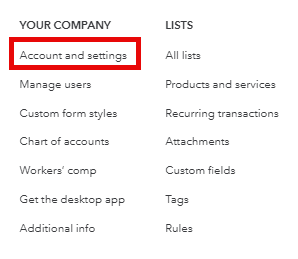
Next, navigate to “Your Company > Account and settings.”
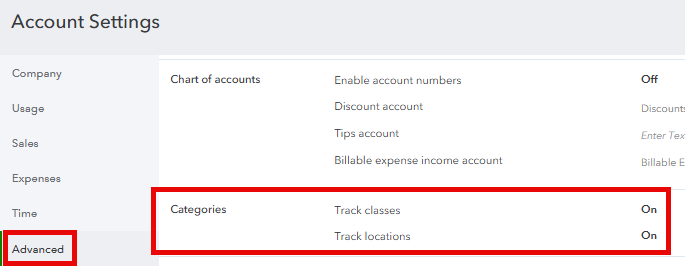
Select Advanced > Categories.
Click on the pencil icon on the right.

If you have turned off class tracking, click the slide button to activate this feature.

Warning Message
If you forget to enter a class when entering a transaction, QuickBooks can display a reminder message. This is optional.

When you select this option, the following message will appear when entering transactions on bills, invoices, and other forms.

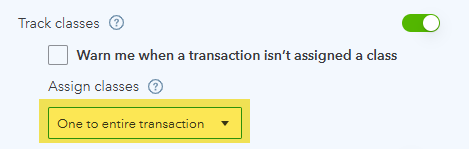
Next, a question about tracking classes by transaction or by row will appear.
Tracking Classes by Rows or Entire Transaction
One Class per Transaction
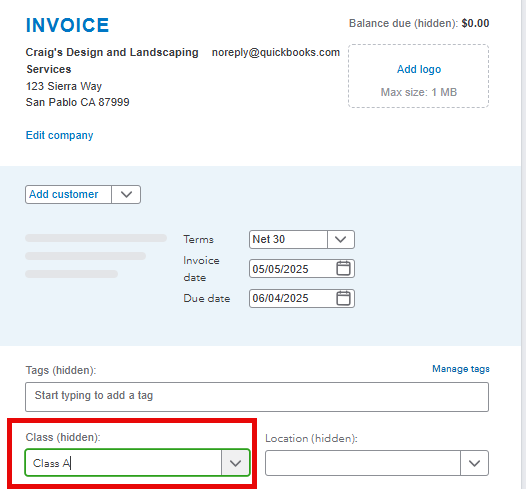
You can assign a class to the entire transaction (1 per bill or invoice).
Here is an example showing one class for each invoice. You select one class for the entire bill or invoice.
Class by Row
You can also assign a class to each row (line) on a bill or invoice.
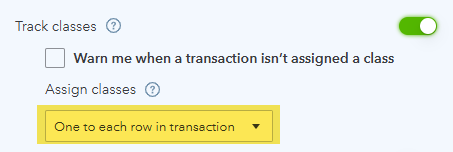
Here is an example of a class on each line of a bill. On a bill or invoice, you can choose a different class for every line.

Categorizing transactions by Class allows you to run reports by segment and track performance.
Creating New Classes
You can create new classes directly on forms (such as invoices and bills). Select the downward arrow in the class field box, then select “Add new.”

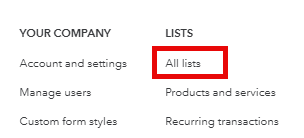
You can also go directly to the class list. Select the settings (gear) icon at the upper right, then “All Lists.”
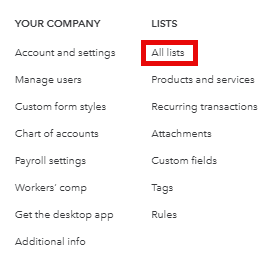
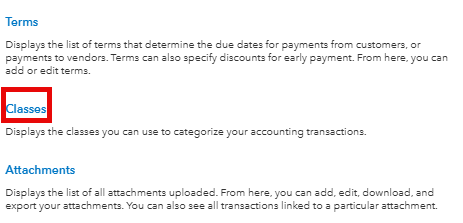
Click on “Classes.”
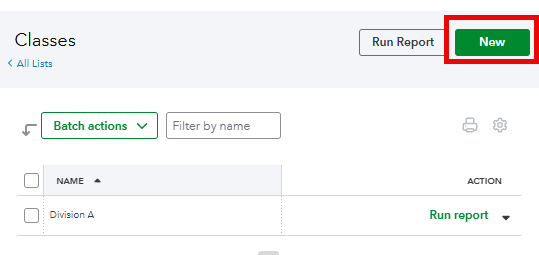
Select “New” to enter classes.
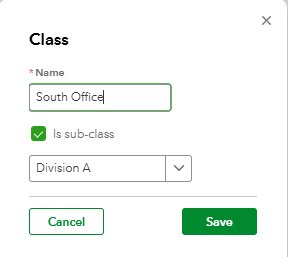
This option allows you to select a subclass.
Sub-Classes
If you create a new class directly from the class list (not a form), you can select the option to assign a subclass. You could then run reports on both class and subclass. QuickBooks allows a main class and four sublevels. I recommend that in most cases, you keep it simple!
Using the Class List
You can see a list of all of your company classes by selecting the settings (gear) icon at the upper right of your screen. Then, select Lists > All Lists.
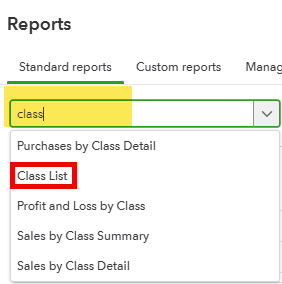
You can also search reports for “Class List.”
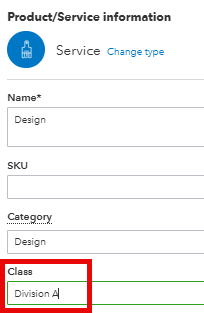
Default Class for Products and Services
QuickBooks gives you the option to set a default class for products and services. This can be changed when needed.
Standard Reports by Class
Class tracking is primarily a tool to track revenue and expenses. With that in mind, the following standard reports are available:
- Profit and Loss by Class
- Sales by Class Summary
- Sales by Class Detail
- Purchases by Class Detail
- Class List
Custom Reports by Class
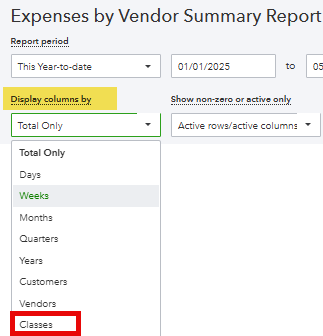
You can display many other reports by class. Select “Display Columns by.” Filtering by class is also available in many cases.
Balance Sheet by Class
Classes are primarily for income and expenses. If you run a balance sheet by class, you may get unexpected results. More information is available here.
Using Classes in Budgets
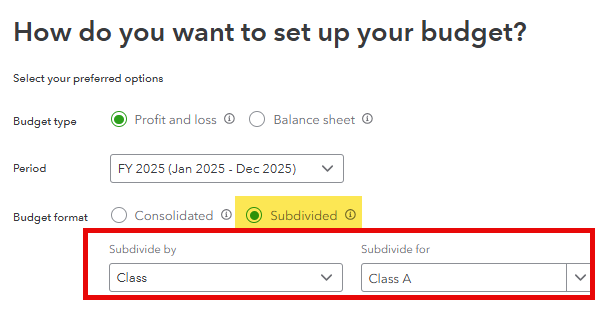
Selecting “subdivided” will allow you to run a budget by Class.
Summary
Classes are a tool to help analyze the profitability of your business by division, product line, location, and more. This is very useful for KPI analysis and tracking company goals and performance.
Support Link
Here is a link to a great post by Intuit.